
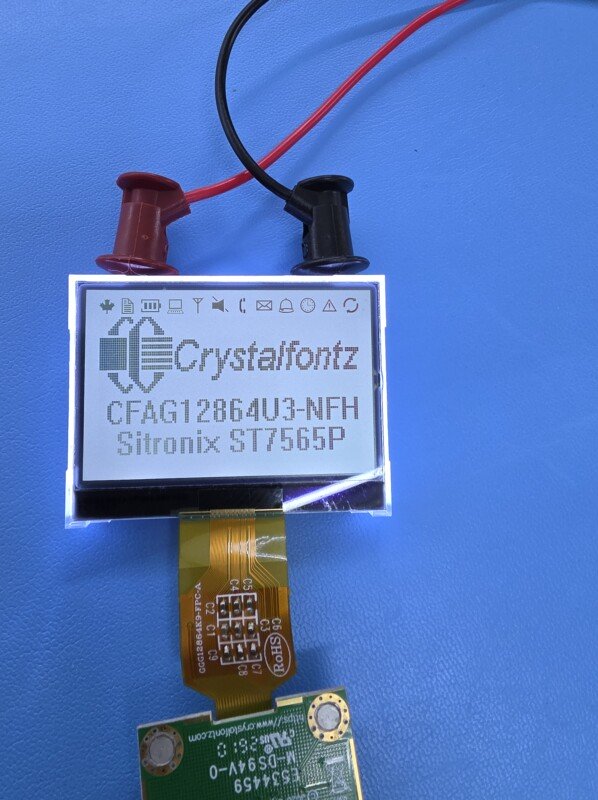
Adjusting the Contrast on CFAG12864T and CFAG12864U series
Our CFAG12864T and CFAG12864U series are a great display to use in any project. You are able to adjust the contrast easily through our sample code.
Links to repository, zip file and LCD_low.cpp
GitHub repository:
https://github.com/crystalfontz/CFAG12864Tx_and_Ux_ST7565P
Zip file download:
https://github.com/crystalfontz/CFAG12864Tx_and_Ux_ST7565P/archive/refs/heads/master.zip
Exact file for contrast control:
https://github.com/crystalfontz/CFAG12864Tx_and_Ux_ST7565P/blob/master/CFAG12864Tx_and_Ux_Arduino/LCD_low.cpp
Location of contrast control value
In this example, I’m working in the Arduino code in LCD_low.cpp, which supports the CFAG12864T3, CFAG12864T4, CFAG12864U3, and CFAG12864U4.
First, select the display you’re using in LCD_low.h (lines 38–41). Then find the contrast setting for your display in LCD_low.cpp:
For CFAG12864T3 line 208
For CFAG12864T4 line 218
For CFAG12864U3 line 228
For CFAG12864U4 line 238
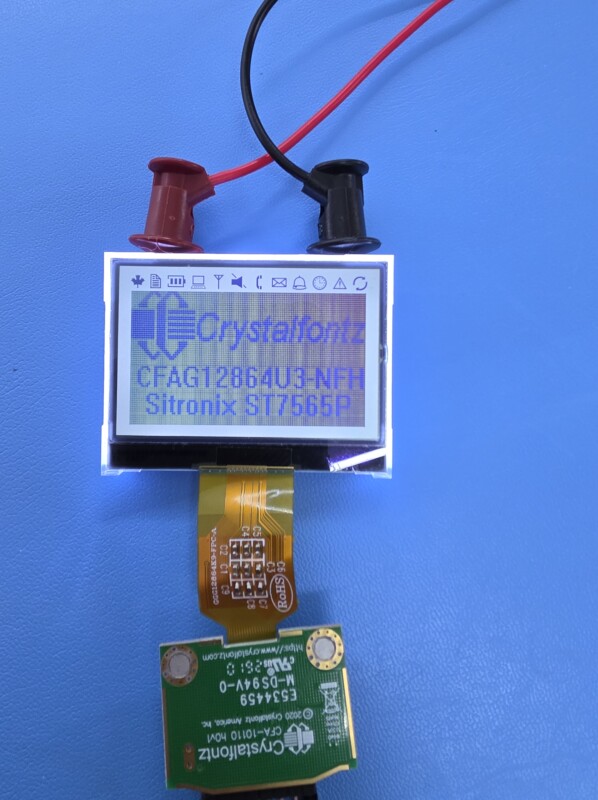
The contrast range is 0–63, and the default value is a good starting point. Increase the value to darken the display, or decrease it to lighten it. The U3 section is shown below as an example.
#if (display_type == CFAG12864U3)
  //Set the resistor ratio range (0-7) so that the contrast is near
  //the middle of its 0-63 range.
  SPI_sendCommand(NT7534_20_RESISTOR_RATIO_RANGE_SET_BIT | 0x04);
  //The contrast has a range of 0-63.
  //For the CFAG12864U3 Contrast of 24 looks pretty good.
  SPI_sendCommand(NT7534_81_CONTRAST_PREFIX);
  SPI_sendCommand(24);
#endif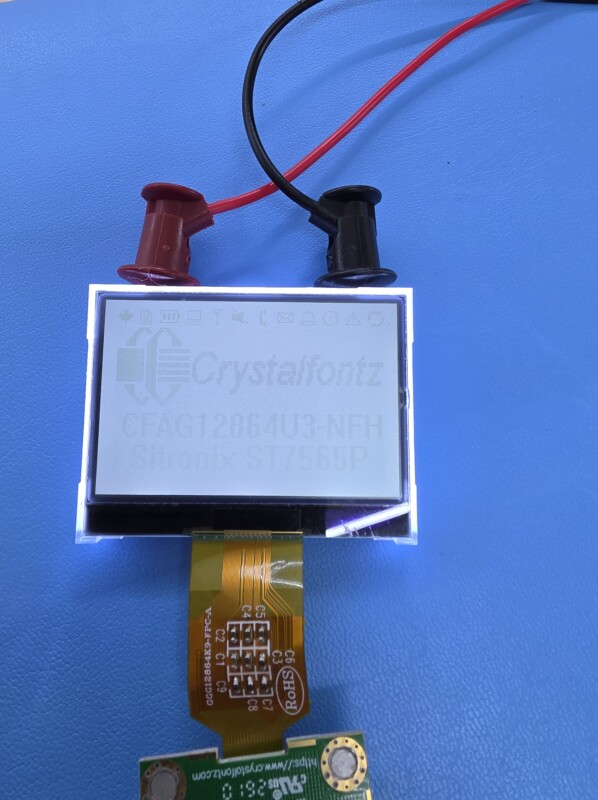

Jeffrey Nystrom is an engineering technician at Crystalfontz. He graduated from ITT Technical Institute of Technology with his B.S. in Electronics Engineering. In his position, Jeff engages in customer technical support, works on engineering projects, and supports Crystalfontz’s manufacturing operations. Outside of the office, Jeff enjoys working in his shop, tinkering with his 3D printer, and going on new adventures with his family.